How to track your sleep using Google tools
I'll show you how to track your sleep routine using tools that everyone can access for free within their Google account.
Want to track your sleep without the need for specialized apps or expensive wearables? In this article, I’ll share how I created my own sleep tracker right in Google Sheets and extended it with email notification using Google Apps Script.
Article content:
Why track your sleep?
We spend about a third of our lives sleeping, and the quality of our sleep greatly affects our recovery, concentration and overall productivity. That’s why we should pay attention to it. Some people have trouble falling asleep, others get up at the first ring of the alarm clock. Whatever your reason, having your own sleep diary can help you find patterns, spot problem days and better understand your habits.
I personally try to go to bed and get up at the same time - but honestly, I don’t always succeed. That’s why I started recording my sleep so I could retrospectively evaluate how I kept to my routine in each day, week or month.
Google tools used
- Google Sheets - the main database and summary of results
- Google Forms - a simple interface for logging sleep
- Apps Script - automatic email notification with a link to the form
How to create your own sleep tracking app
Let’s dive into the actual process of creating the app.
Step 1. New table and form
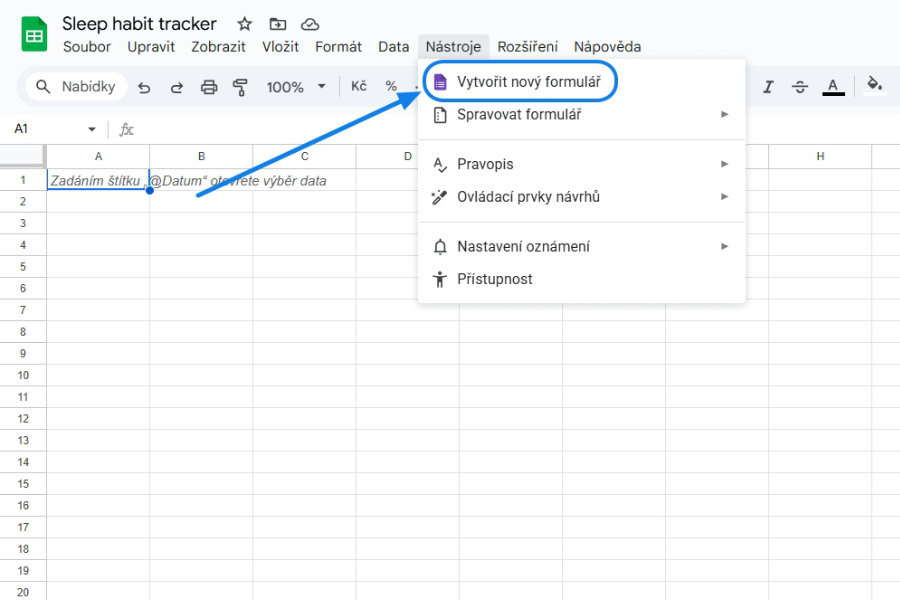
Let’s open a new Google sheets file. Rename sheet 1 to e.g. sleep_calendar. We will connect a form to the table, through which we will enter sleep data every day.
We can find the form creation in the top menu under the Tools tab and then click on Create new form. This will open a form in Google Forms where we define what we want to track. At the same time, a new sheet will be created in Google Sheets with records linked to the data from the completed form. We will name this sheet for example sleep_tracking_data.
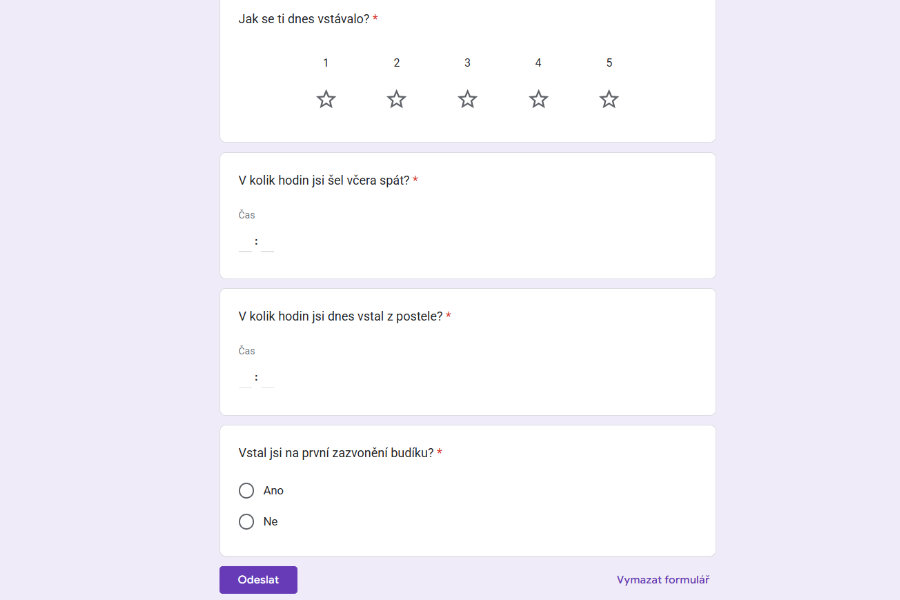
Since I’m not able to count to ten in the morning, I’ll write down the time I went to bed the night before and the time I woke up. I will then have the resulting time automatically calculated via a formula from the difference of these values.
So I personally want to know:
- my morning mood,
- the time I went to bed,
- the time I woke up,
- and if I got up at the first ring of the alarm clock.
For better context, anyone can add other parameters as they wish, e.g.: a note field or whether you stopped drinking and eating an hour and a half before bedtime, etc.
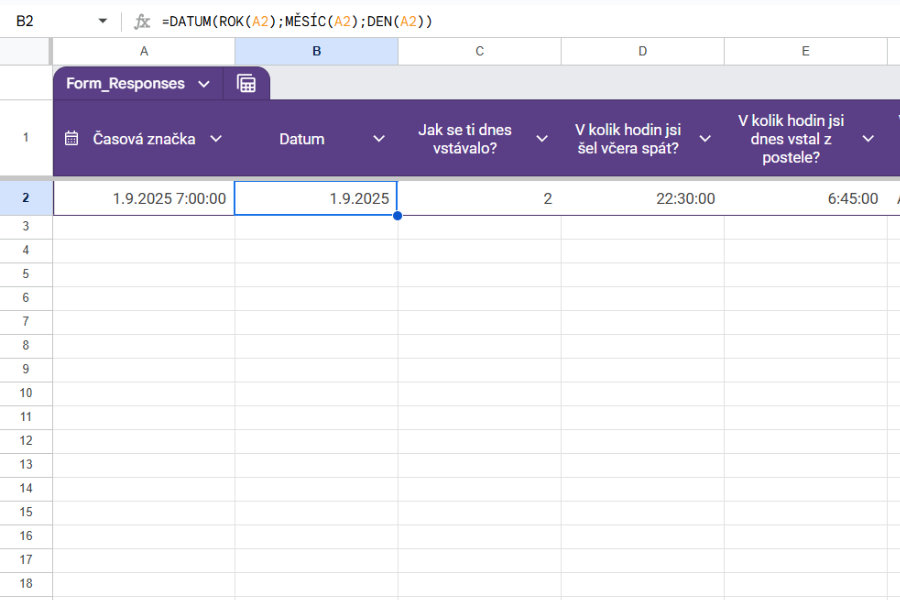
Let’s send the first test record by filling in the form. The values will be automatically written to the sleep_tracking_data sheet. We add a new column in the second position after the timestamp and insert the formula =DATE(YEAR(A2), MONTH(A2), DAY(A2)) to clean the date with the timestamp. This is so that the function will always find the exact date for us to look up the value. In the last column (for my example, column G), we add a calculated sleep duration column by simply the difference between the time of going to sleep and the time of waking up.
Once we have the parameters defined, let’s move on to creating the summary table.
Step 2. Overview calendar with sleep records
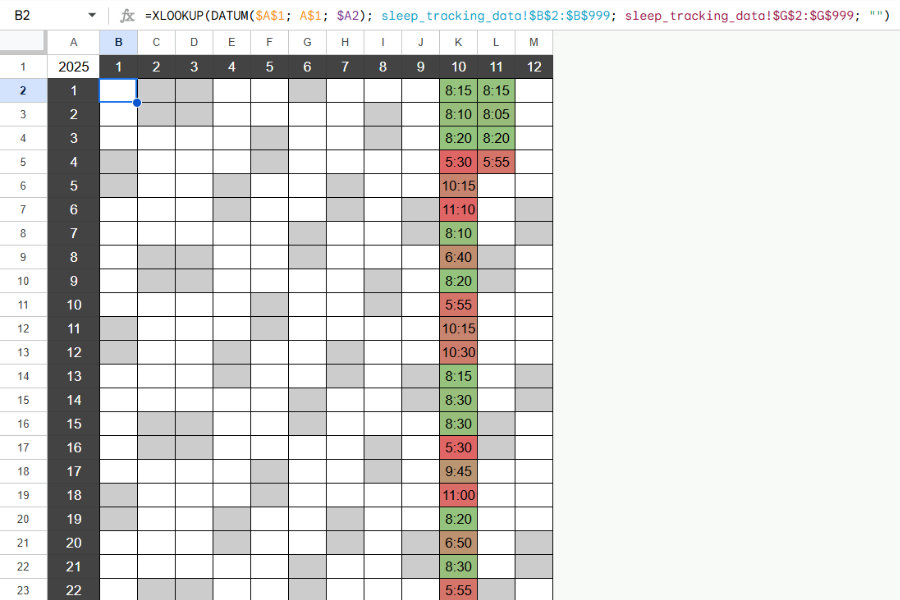
In the overview table on the sleep_calendar sheet we create the month numbers (1 to 12) in columns and the day of the month numbers (1 to 31) in rows. To know what year it is, we put the current year in cell A1. The year will also come in handy for the formula that looks up a specific record from sleep_tracking_data and assigns it to a specific date in the summary table.
To see the total sleep duration for a specific recorded day, we write the following formula in cell B2 and copy it to all the fields in our matrix:
=XLOOKUP(DATE($A$1, A$1, $A2), sleep_tracking_data!$B$2:$B$999, sleep_tracking_data!$G$2:$G$999,"")
The format of the cells will need to be modified as HH:mm so that it displays nicely formatted as time, otherwise we’ll just see some number that doesn’t say anything.
We can use Conditional Formatting to clearly highlight values according to our own rules. For example, for sleep duration we can set a color scale where significantly outliers are shown in red and values close to the ideal are shown in green.
Another option is to duplicate the table and record subjective feelings upon waking (e.g. good, bad, etc.) in a copy. We then assign colors to the individual values, which are then written as background in the time table. We can hide the duplicated table and keep only the main overview with the time values coloured according to how well we felt in the morning.
Since the months have different number of days, it is useful to colour the cells corresponding to non-existent dates darkly, so that it is clear at a glance that no value can occur here. In the same way we can highlight weekends, for example in light grey.
The resulting report can then look like this:
If we wanted to track data between years, we’d create a new sheet with a spreadsheet and just change to the desired year in cell A1.
Step 3. Automatic notification to email
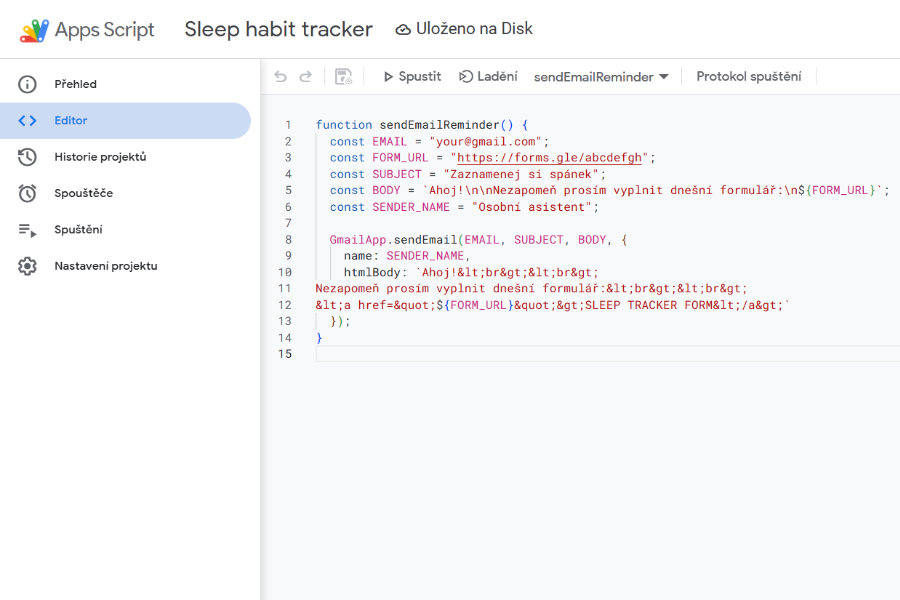
To make sure we don’t forget to fill in our sleep data in the morning, we’ll send ourselves an email notification every morning via Google Apps Script. In the top menu of Google Sheets, click on the Add-ons tab, where we will find Apps Script. Create a script with a code to send a message from our Gmail account and enable the necessary authorizations.
function sendEmailReminder() {
  const EMAIL = "your@gmail.com";
  const FORM_URL = "https://forms.gle/abcdefgh";
  const SUBJECT = "Record your sleep";
  const BODY = `Hi!\n Please don't forget to fill in today's form:\n${FORM_URL}`;
  const SENDER_NAME = "Personal assistant";

  GmailApp.sendEmail(EMAIL, SUBJECT, BODY, {
    name: SENDER_NAME,
    htmlBODY: `Hello!<br><br>
Please remember to fill out today's form:<br><br>
<a href="${FORM_URL}">SLEEP TRACKER FORM</a>`
  });
}
In Google Apps Script, set the trigger of the function to the appropriate time in the morning when we want to receive the notification.
We don’t have to send a reminder just by email, but we can, for example, put a link to Google Keeps or Google Calendar and set up a regular reminder. It depends on what we’re used to using, and we’ll choose a tool to help us remind ourselves every morning to enter the form.
And we’re done! :)
Tip for the end You can also use the app as a dream recorder to record dreams you had while sleeping first thing in the morning. It can also be used as a simple tracker to keep track of the habits you want to focus on.
Need help with this or other automation? Email me or schedule a FREE 30 min consultation.